
Voice search on Android or Windows relies on a precise technical chain: an active microphone, an application authorized to listen, a downloaded voice recognition model, and a process running in the background without being interrupted by the system. When one of these links fails, voice commands stop responding, sometimes without any visible error message.
Migration to Gemini: the invisible cause of a silent voice assistant
Since Google has been rolling out Gemini as the default assistant on many Android phones, a recurring situation appears in forums: the command “Hey Google” or “Ok Google” becomes unstable or silent after testing Gemini. The problem particularly affects Samsung and Pixel devices.
The mechanism is simple. When a user activates Gemini, the old Google Assistant loses its place as the primary voice assistant. If the user then returns to the classic Assistant, the Voice Match settings do not always reactivate automatically. Voice detection then remains disabled without any clear indication in the settings.
To understand the reasons for a halted voice search in this context, it is necessary to check which assistant is currently selected. The path on Android: Settings > Apps > Default apps > Digital assistant app. If Gemini is listed while the classic voice command is expected, the conflict is identified.
The solution is to reassign Google Assistant as the default assistant app, then reconfigure Voice Match from the Google app settings (Assistant tab > Voice Match > retrain the voice model).

Android battery optimization: the voice process killed in the background
On recent versions of Android, hands-free voice search does not always stop due to the microphone. The culprit is often the system’s battery manager, which cuts off the continuous listening process to save energy.
Three mechanisms can interrupt voice input or “Hey Google” detection:
- Battery Saver: when active, it suspends background tasks, including listening for the voice keyword by the Google app.
- Adaptive battery, enabled by default on recent Pixel and Samsung devices, learns which apps are “rarely used” and reduces their activity. If the voice assistant is not used for a few days, the system may classify it as non-priority.
- App optimization: each manufacturer (Samsung, Xiaomi, Huawei) adds its own layer of management. On a Huawei P30, for example, the Google app must be explicitly excluded from battery optimization to maintain active listening.
To check this point: Settings > Battery > Battery optimization, then find the Google app and select “Don’t optimize”. Excluding the Google app from battery optimization often reactivates voice detection without further manipulation.
Resetting the Google app: the “clean slate” procedure on Pixel and stock Android
When the settings seem correct but voice search refuses to work, the problem sometimes arises from a conflict between the installed version of the Google app and the system. This case has been documented on Pixel 6a, where a Top Contributor from Google detailed the following procedure.
The method involves uninstalling updates to the Google app, completely clearing its storage, then reinstalling the updates from the Play Store before reactivating Voice Match. This approach resets corrupted configuration files without touching the personal data on the phone.
Concrete steps for resetting
- Go to Settings > Apps > Google > Storage, then tap “Clear storage” and “Clear cache”.
- Return to the previous screen and tap the menu (three dots in the upper right) > “Uninstall updates”.
- Restart the phone, open the Google Play Store, search for the Google app, and update it.
- Open the Google app, go to Voice Match settings, and re-register the voice model.
This procedure resolves the majority of cases where Google voice command stops after a system or app update. It also works on other Android models besides Pixel, as long as the Google app is the one installed by default.
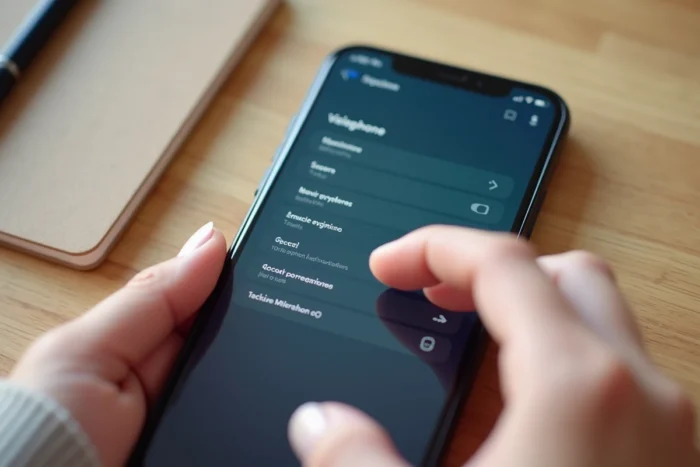
Voice input Gboard and microphone on Windows: two distinct cases
Voice search is not only about the Google Assistant. Voice input via Gboard (the Google keyboard) and voice recognition on Windows operate under different logics.
On Gboard, the microphone button disappears or becomes unresponsive when voice input is disabled in the keyboard settings. To reactivate it: open Gboard > Settings > Voice input, and ensure the option is checked. If the microphone remains inactive, check that the app permissions (Settings > Apps > Gboard > Permissions > Microphone) are granted.
On Windows, voice input (Windows + H shortcut) requires the microphone to be selected in Settings > System > Sound > Input. Microsoft reports several possible errors, including “Voice input is not available in the current language,” which can be resolved by installing the corresponding voice pack from Settings > Time & language > Language & region.
Check microphone permissions on Windows
A common blockage comes from privacy settings. In Settings > Privacy & security > Microphone, access to the microphone must be enabled globally and for each application that uses voice. A Windows update may reset these permissions without warning.
Voice search depends as much on software as on hardware and system policies. Before looking for a microphone issue, checking the default assistant, battery restrictions, and app permissions covers the vast majority of failures, regardless of the device.