The Freebox Pop operates on Android TV, allowing it to communicate natively with the Google ecosystem. Pairing the Player Pop with Google Home to control your television or smart devices by voice seems straightforward on paper. In practice, several network and software parameters affect the reliability of voice control. This article measures the gaps between the different configuration methods and identifies the most common bottlenecks.
Freebox Pop and Voice Control: Comparison of Control Methods
Three approaches coexist for sending voice commands to the Player Pop. Each utilizes different hardware and network paths, with varying capabilities.
| Method | Required Hardware | TV Commands | Smart Home Commands | Microphone Range |
|---|---|---|---|---|
| Freebox Pop Remote (integrated microphone) | Included remote | Yes (channels, volume, apps) | Limited (via Google Assistant on the Player) | Several meters |
| Google Home / Nest Speaker | Connected speaker + Google Home app | Yes (Chromecast built-in) | Yes (routines, compatible devices) | Whole room |
| Smartphone as a remote | Android or iOS phone + Google Home app | Partial (cast, search) | Yes | Variable (Wi-Fi) |
The physical remote covers daily TV control, but the Google Home speaker remains the only complete vector for smart home control. The smartphone serves as a backup solution when the remote’s microphone malfunctions or voice recognition fails.
To set up my Freebox Pop with Ok Google, you first need to connect the Player Pop to your Google account via the Google Home app, then ensure that all devices share the same Wi-Fi network.
Wi-Fi Stability of the Freebox Network: A Often Overlooked Prerequisite
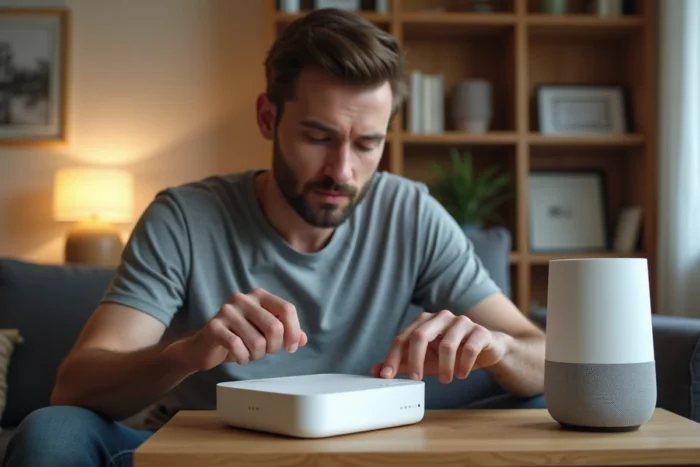
The majority of voice command failures do not stem from poor Google Assistant configuration, but from network instability between the Player Pop, the connected speaker, and the Freebox server.
Free has deployed a firmware update for the Freebox (version 4.12.x) that fixes a Wi-Fi bug causing connection drops on several recent models, including the Pop. Checking the firmware version before any voice configuration prevents searching for a software issue where the network is at fault.
Check and Force Update of the Freebox Server
The firmware version is displayed in the “Advanced Information” menu, then “Version” on the Player Pop. If the version is earlier than 4.12.x, a simple restart of the Freebox Server triggers the automatic download of the fix.
- Unplug the Freebox Server for about thirty seconds, then plug it back in. The Player Pop will then restart by itself.
- After restarting, check that the Player Pop and the Google speaker reconnect to the same SSID (5 GHz band preferred to reduce latency).
- Enable Wi-Fi 6 in the Server settings if the option is available, which improves the simultaneous handling of multiple connected devices.
A Player Pop connected via Ethernet rather than Wi-Fi eliminates the wireless network variable for the connection to the server and frees up Wi-Fi bandwidth for speakers and the smartphone.
Linking Google Home and Player Pop: Problematic Steps
Pairing in Google Home follows a classic pattern: open the app, add a device, select the Player Pop detected on the local network. However, two friction points frequently arise.
Single Google Account or Multiple Accounts
The Player Pop and the Google Home app must use the same Google account. If multiple accounts are registered on the smartphone, Google Home may attempt to link the Player to a secondary account. Voice control fails silently when the accounts do not match, without an explicit error message.
The verification is done in the Player Pop settings, under “Accounts,” then in the Google Home app, section “Linked Devices.” Both must display the same Gmail address.
Assigning the Player to a Room in Google Home
Google Home organizes devices by rooms. Without assignment, the command “Ok Google, play TF1” does not know which device to target if multiple Chromecasts or Players are present on the network. Naming the room (“Living Room,” “Bedroom”) and assigning the Player Pop allows the assistant to route the command to the correct screen.
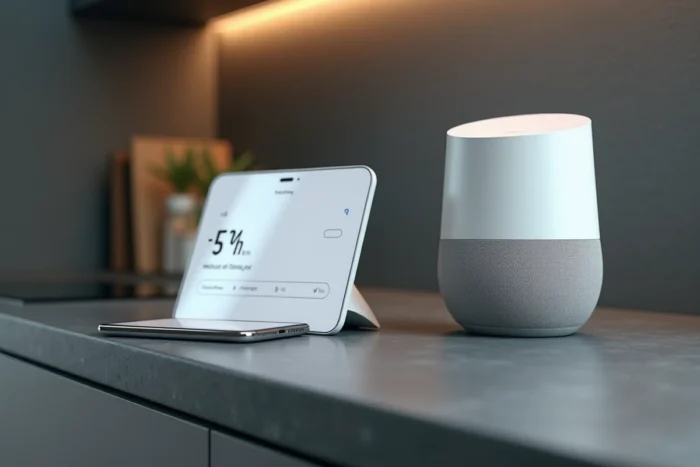
Voice Commands on Android TV with Freebox Pop: What Works and What Doesn’t
The Player Pop running Android TV recognizes Google Assistant voice commands natively. The remote has a dedicated button that activates the microphone.
Navigation commands work reliably: launching an app (Netflix, YouTube, Molotov), searching for a program by title, adjusting the volume. Channel surfing commands by channel number remain hit or miss according to user feedback, as they depend on the TV app used (Oqee, third-party IPTV) and how it exposes its channels to Android TV.
- Reliable commands: “Ok Google, open YouTube,” “Ok Google, increase the volume,” “Ok Google, search for an action movie.”
- Variable commands: “Ok Google, go to channel 2” (depends on Oqee’s integration with Android TV).
- Smart home commands via speaker: “Ok Google, turn off the living room light” (works if the connected object is linked in Google Home).
- Unsupported commands: turning the Player Pop on or off remotely by voice (the Player must be in active standby, not turned off).
When the remote’s microphone is unresponsive, the official Freebox app or the Google Home app on a smartphone allows you to continue sending voice commands. This workaround works as long as the phone is connected to the same local network as the Player.
The voice configuration of the Freebox Pop relies more on the rigor of network setup than on software complexity. An up-to-date firmware, a stable Wi-Fi network, and a consistent Google account across all devices cover the vast majority of malfunctions. The rest pertains to the gradual integration of Android TV with television services, a project that depends as much on Free as it does on Google.